Tag: Microsoft
Starting from 1st of October, Microsoft have implemented a significant change to their Power Platform licensing model; today we will review the impact this will have on current Flow and PowerApps users who are already availing of the limited capabilities included in O365 plans. It’s important to understand what the changes are, how they will affect you, and what action needs to be taken.
|
Firstly, the significant changes to the O365 PowerApps & Flow licenses are as follows:
If you are not currently using these services then no action is required; you will start on the new model if you decide to start running these services. However, if you are currently utilising these resources, then it is possible to ask Microsoft to extend your current licensing terms until 1st of October 2020, or the expiration of your current Online Service term. There is some urgency to request this extension, as it needs to be made before 31st of December 2019. Our recommendation: If you are not currently using these services, no action is needed, but if you are using O365 PowerApps and/or Flow services, and will be affected by the changes below, open a service request on your O365 tenant (see guide) and request an extension to your current licensing model.
|
In a recent blog, I discussed the End of Support for Windows 7 and what to consider when planning your migration path. Keeping the reading light, I chose not to mention that Office 2010 is facing the same fate on the 13th of October 2020. Thankfully the path forward is a bit less complicated and Microsoft offers services like Desktop App Assure which will help your organisation with any compatibility issues when following the recommended upgrade path.
What is the Microsoft recommended path? Move to Office 365 or Microsoft 365 which includes both Windows 10 and Office 365. So the question is, why not Office 2019?
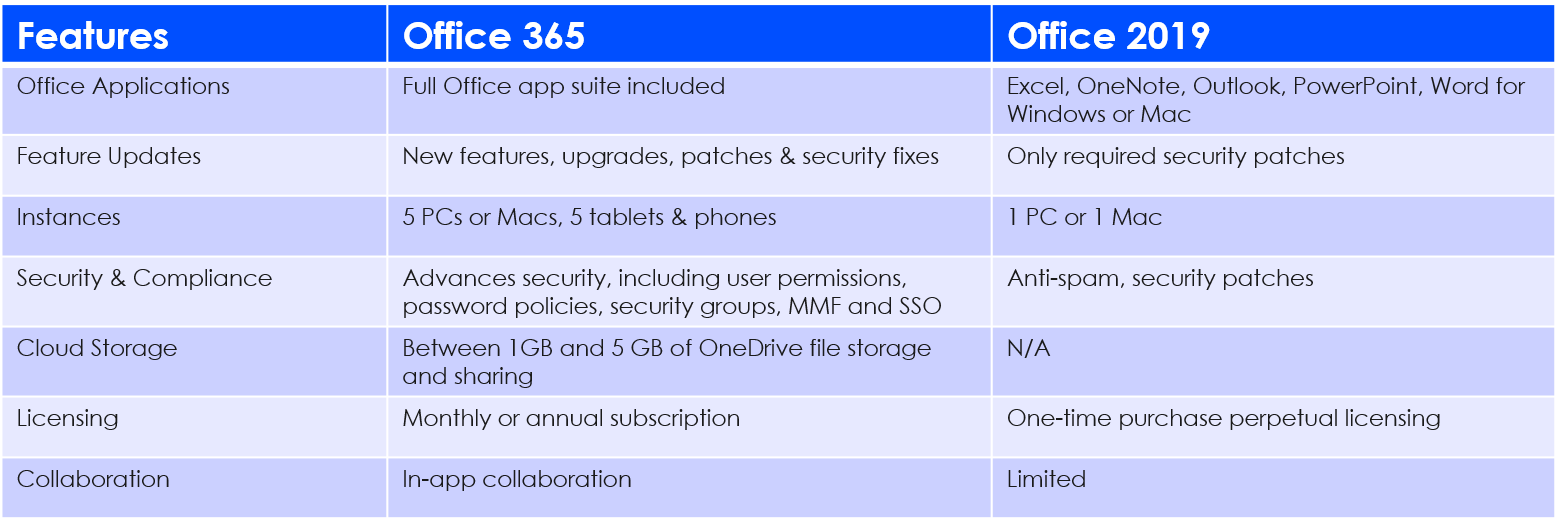
It’s a simple case of more for less. I am going to try and break it down for you without getting too technical. If we look at Office 365 and Office 2019 they both come with the latest Office productivity suite, however, Office 365 is powered by the Microsoft Cloud, which means it has more features with build in AI and better security. Office 2019 is just a once off install which is an on-device only digital workplace.
Office 365 is a monthly or annual subscription – the only difference you need to understand is the way it’s delivered to devices and updated.
Office 365 allows you to have up to 5 simultaneous installations for each user, which means you can install the full Office experience on up to 5 PCs, Macs, and or smart devices. Unlike Office 2019 which is a standalone non-subscription version locked to the device.
Office 2019 includes features found in Office 365, but it’s not part of Office 365 product offering. It’s the traditional Office installation which we are all familiar with and more comparable to Office 2010. The fundament difference is Office 365 is a cloud service that seamlessly connects and includes Exchange Online, Sharepoint Online, Microsoft Teams/Skype – making it possible to work in any location, across multiple devices.
Check out the Twins Challenge that illustrates some of the key differences in the productivity suite of Office 365 ProPlus and Office 2019 https://www.microsoft.com/en-us/microsoft-365/blog/2019/02/06/the-twins-challenge-office-365-crushes-office-2019/
Here a short table comparing the two:
Now for the important part – What does this mean for IT?
Active Directory integration: Office 365 user permissions can be quickly managed and synchronized with Azure Active Directory (AAD), enabling single-sign-on (SSO) of Multi-Factor Authentication which provides a high level of security and easier access.
Click-to-Run: Office 365 has a streamlined installation process that makes it easier and faster for users to get set up, and you can also let local admin-permitted users install manually through a web-based portal.
File-share, Storage and Backup: Microsoft Sharepoint and OneDrive offer users a workspace to store, access, co-author, files from anywhere. This will lighten the workload on your local network storage. External sharing is also made easy and even allows you to protect files regardless of who it is shared with outside your organization.
Multiple Deployment method: You can deploy Office 365 to your users in multiple ways and that best suit your current state of digital transformation – with the Office Deployment Tool (ODT), Intune, Content Delivery Network (CDN) or System Center Configuration Manager (SCCM) you can reach both on-premise and cloud deployments.
Updates: Office 365 is one of the most feature-rich and secure versions available. Feature updates are scheduled automatic by default and can be changed to suit your organisation policy. This will then allow testing or manage updates using SCCM. You can also control how frequently users get updates for Office apps; semi-annual or monthly.
Group Policy: With Office 365 settings can be managed through the same Group Policy settings your business uses with other versions of Office currently installed on your network.
Workplace mobility: Powered by the Microsoft Cloud, you have more options when it comes to which work devices are granted access to which application. Instead of Office being locked to a desktop computer, it can be licensed to a user’s work or private laptop or tablet, allowing them to view and edit documents on-the-go securely.
Today’s productivity landscape has evolved into an always on, always available digital workspace. Employees want the ability to respond, collaborate and communicate on any device, at anytime from anywhere.
It reminds me of the story about Henry Ford, who made a very brave decision to change the productivity landscape by reducing the work week to improve production. Everyone thought he had gone mad and it would cost him dearly. Well, it worked. This is true for today’s digital workspace and the flexibility Office 365 can bring to your workforce. Through Office 365 deployment, you will see increased productivity and improved morale by empowering your staff through a more flexible work landscape.
Want to know more? Talk to us here to find out how you can transform your workplace with Office 365.
In May, Microsoft announced a vulnerability in legacy operating systems that has high potential of being exploited. The vulnerability is in the Remote Desktop Services (formerly known as Terminal Services) and could be exploited remotely with no authentication required. This affects Windows 7, Server 2008, and 2008 R2.
The vulnerability is severe enough that Microsoft took a pretty unusual step in releasing updates for Windows XP and Server 2003 in addition to currently supported versions of Windows that are affected. If you remember back to the WannaCry attack, Microsoft had issued a patch months before, but some companies hadn’t installed the fix. This led to a global impact. In order to avoid a potential repeat, companies are urged to update all affected systems as quickly as possible.
To help, Ivanti are giving a free 60-day license to Ivanti Security Controls, which includes solutions such as patch management, privilege management and whitelisting in one place. Ivanti’s IT software is used by 79 of the Fortune 100, helping businesses succeed through unifying IT systems and technology stacks.
Download the 60-day trial license here. With this license you will be able to quickly update up to 50 systems including Windows XP and Server 2003.
To learn more, get in touch with us and we will organise a call for you with Ivanti representatives based locally here in Ireland.

What else can Ivanti help your business achieve? Talk to us and find out.
A decade down the road and it’s time to say goodbye to Windows 7. I know what you’re thinking – we tried Windows 8.1 back in 2012. It didn’t go well. But, looking ahead, Microsoft have given us a more secure, reliable, and compatible OS than ever before; Windows 10.
Before we get started, you should know this blog has a dual purpose.
Apart from highlighting the obvious improvements and convenience of Windows 10 compared to Windows 7, January 14th 2020 has been named as the date for End of Support (EOS) for Windows 7. After this, Microsoft will no longer provide security updates or support for PCs running Windows 7. You can, however, continue to use Windows 7, but once support ends, your PC will become more vulnerable to cyber-attacks and threats. If you’re also thinking that not upgrading will save you money, think again. The cost of recovering data from a hacked system, and then having to upgrade anyway, will cost you a lot more in the long run.

But – it’s not all doom and gloom, we can keep the good times rolling by planning the process today.
So, what are your options?
For users of Windows 7 Professional and Windows 7 Enterprise, you can purchase Extended Security Updates through January 2023. For more in-depth details about Windows 7 Extended Security Updates, you can download the Microsoft End of Support FAQ.
It’s also advisable to look to upgrade compatible Windows 7 PCs based on these requirements to a full Windows 10 OS. This can be done in two ways; purchase the OS license outright, or simply upgrade your Office 365 plan to Microsoft 365 Business or Microsoft 365 Enterprise. The Microsoft 365 plans already include Windows 10 and offer additional security features through EM&S, such as advanced threat protection and conditional access at no additional cost.
Another exciting option is to look at moving to the cloud with Microsoft Windows Virtual Desktop(WVD) services in Azure. This is a great option if your company runs legacy applications and need to continue to support Windows 7 as you move to Windows 10. WVD will enable your business to virtualise Windows 7 desktops with free Extended Security Updates (ESU) until January 2023. This support provides a comprehensive virtualisation solution for Windows 7 alongside your Windows 10 and Windows Server desktops and apps. These Virtual VM can either run Windows 10 Enterprise multi-session or Windows 10 single-session making it suitable for both power users and field staff.
Or you could simply take advantage of the latest hardware capabilities, and move your users to a new PC with Windows 10.
Sound complicated? With a partner, it doesn’t have to be.
Any which way you are considering, my advice is to engage your Licensing Partner and/or Software Asset Management (SAM) partner now! If you don’t already have one, you can talk to us. Whether you are considering new hardware, an OS migration, cloud virtualising or a combination the sooner you start preparing the less likely you will be rushed to decide, or worse, not to decide. What a partner can provide you with is an accurate assessment of your estate, costs and your effective license position required for compliance. From there, you can outline the scope and understand what each potential option will cost and how long it will take to deploy. Be prepared and get ready – with less than a year to go there is no time to waste.